..::Stuff To Torrent::..

Movies, Games, Tv, Appz, and more. The Warez Community is a beautiful sight to be scene.

Donate

Sunday, April 20, 2008

UFC 83 Serra vs St-Pierre 2 PPV HDTV XviD-aAF


More MMA!

It’s the moment all the MMA fans have been waiting for Matt “The
Terror” Serra Takes on Georges “Rush” St. Pierre on UFC 83.

Let me tell you this PPV was one of the best UFC PPVs I
have seen in a long time. Good solid fight card. Great Matches, an all
around great Pay Per View. I hope you MMA fans enjoy this PPV as much
as I did. It was brought to us by the group aAF so thank you to them
for their speedy uploading of the event! Quality is great as the source
was HDTV. Enjoy!


Serra vs St. Pierre 2


MAIN CARD


Champ Matt Serra vs. Georges St. Pierre (title-unification bout)


    Rich Franklin vs. Travis Lutter

    Nate Quarry vs. Kalib Starnes

    Michael Bisping vs. Charles McCarthy

    Marc Bocek vs. Mac Danzig


UFC.83.Serra.vs.St-Pierre.2.PPV.HDTV.XviD-aAF


624×352 - XviD - 16:9 - 29.97fps - VBR 128 kbps - MP3 - 1.37 GB

Torrent - NFO - NZB - Official Site


Sunday, March 23, 2008

Bypass any Firewall or Throttling ISP

BitTorrent: Bypass any Firewall or Throttling ISP with SSH

On some networks it’s impossible to use BitTorrent. For example, if
you’re at work, school, or connected to Comcast or a public hotspot.
But there’s an easy solution to overcome this problem. By using a
secure connection (SSH), you can bypass almost every firewall or
traffic shaping application.

http://torrentfreak.com/bittorrent-over-ssh-071014/

Here’s a relatively simple 3-step guide that will show you how to set it up.

I wouldn’t recommend BitTorrent over SSH as a permanent solution since
it will cripple the servers of the SSH providers. If you’re looking for
a long term solution check out a VPN service such as Relakks https://www.relakks.com/?cid=gb

1. Get an SSH account.

You need an SSH account in order to get this working. You can try one of these free shell providers from this list http://www.dmoz.org/Computers/Internet/Access_Providers/Unix_Shell_Providers/Free_Shells/ . I currently use silenceisdefeat http://silenceisdefeat.org/ which requires a small $1 donation. However, the account is immediately activated and works fine for me.

2. Download, Install and Configure Putty

Download Putty http://www.chiark.greenend.org.uk/~sgtatham/putty/
, store it somewhere on your computer and run it. In the session
screen enter the host name (I use ssh.silenceisdefeat.org), the port
number (22), and tick the connection type box (SSH).

http://torrentfreak.com//images/ssh-putty-s.jpg

Next, go to SSH –> Tunnels, enter a source port and tick the dynamic
box. I’m using port 23456, but you are free to choose any post you like
as long as it’s available.

http://torrentfreak.com//images/ssh-putty-tunnels.jpg

When you’re done, it might be a good idea to save the session so you
don’t have to enter the info next time you run Putty. If you’re ready,
hit the “open” button in the session screen. A command-line interface
will pop-up so enter your username and password that you received from
your shell-provider, and you’re done.

3. Configure your BitTorrent client.

The last step is to configure your BitTorrent client. I will show you
how it’s done in uTorrent and Azureus but other BitTorrent clients use
a similar setup.

uTorrent: go to Options > Preferences > Connection. Enter your
port number (I use 23456), socks 4 or 5 as type, and localhost in the
proxy field.

Azureus: go to Tools > Options > Connection > Proxy Options.
Tick the “Enable proxying of tracker communications” and “I have a
SOCKS proxy” box. Next, enter your port number in the port field (I use
23456) and localhost in the host field.

http://torrentfreak.com//images/ssh-utorrent.jpg

When you’re done, restart your BitTorrent client and you’re ready to
go. BitTorrent over SSH tends to be a bit slower than your normal
connection, but it’s a great solution when BitTorrent connections are
blocked or throttled.

For those on a Mac OSX, please check out this great tutorial http://www.whalesalad.com/2006/08/27/tunneling-BitTorrent-over-ssh/ (which in part inspired this article) for more details. It includes instructions on how to do this on a Mac, using Azureus.

--------------------------------------------------------------------------------------------------------------------------

VPN service

https://www.relakks.com/?cid=gb

http://www.vpntunnel.co.uk/

--------------------------------------------------------------------------------------------------------------------------

Encrypting your torrents will prevent throttling ISP’s from shaping your traffic.

What does encryption Do?

The RC4 encryption obfuscates not only the header but the entire
stream. This means that it’s very hard for your ISP to detect that the
traffic you are generating comes from BitTorrent.

Note that RC4 uses more CPU time than the plain encryption or no
encryption. It is however harder to identify for traffic shaping devices

--------------------------------------------------------------------------------------------------------------------------

Azureus

1. Go to: Tools > Options > Connection > Transport Encryption

2. Check the ‘require encrypted transport’ box.

3. Choose RC4 in the ‘minimum encryption’ dropdown box

note that RC4 uses more CPU time than the plain encryption or no
encryption. It is however harder to identify for traffic shaping devices

4. You can choose to tick the ‘Allow non-encrypted outgoing connections
if encrypted connection attempt fails’ box. This will ensure
compatibility with clients that are not using encryption. However, it
makes it easier for your ISP to detect BitTorrent traffic. I recommend
that you try to tick this box first. If you are still not getting
proper speeds untick it

5. Tick the ‘Allow non-encrypted incoming connections’ box

--------------------------------------------------------------------------------------------------------------------------

Bitcomet

1. Go to: Options > Preferences > Advanced > Connection

2. Go to: ‘Protocol encryption’ You can choose between ‘auto detect’
and ‘always’. Auto detect will give you more connections but offers
less protection against traffic shapers.

I would recommend to try auto detect first, if that doesn’t increase your speeds you need to switch to always

--------------------------------------------------------------------------------------------------------------------------

uTorrent

1. Go to: Options > Preferences > BitTorrent

2. Go to ‘Protocol encryption’, you can choose between ‘enabled’ and
‘forced’. ‘Enabled’ will give you more connections but offers less
protection against traffic shapers.

I would recommend to try ‘enabled’ first, if that doesn’t increase your speeds you need to swich to ‘forced’.

3. Ticking ‘Allow legacy incoming connections’ allows non ecrypted
clients to connect to you. This improves compatibility between clients
but makes you more vulnerable to traffic shapers.

I would recommend to tick this box, but if that doesn’t increase your speeds, untick it!

Know What You Are Torrenting: Scene Guide

Movies:

CAM -

A cam is a theater rip usually done with a digital video camera. A mini
tripod is sometimes used, but a lot of the time this wont be possible,
so the camera may shake. Also someone sitting there filming the movie
might not sit straight the whole time, and then you have a angled
picture. If cropped properly, this is hard to tell unless there's text
on the screen, but a lot of times these are left with triangular
borders on the top and bottom of the screen. Sound is taken from the
onboard microphone of the camera. As an example, in comedies, laughter
can often be heard during the film. These factors cause the picture and
sound quality to usually come out quite poor, but sometimes we're
lucky, and the theater will be fairly empty and a fairly clear signal
will be heard.

TELESYNC (TS) -

A telesync is the same spec as a CAM except it uses an external audio
source (most likely an audio jack in the chair for hard of hearing
people). A direct audio source does not ensure a good quality audio
source, as a lot of background noise can interfere. A lot of the times
a telesync is filmed in an empty cinema or from the projection booth
with a professional camera, giving a better picture quality. Quality
ranges very, and you should check the sample before downloading the
full release. A high percentage of Telesyncs are CAMs that have been
mislabeled.

TELECINE (TC) -

A telecine machine copies the film digitally from the reels. Sound and
picture should be very good, but due to the equipment involved and cost
telecines are fairly uncommon. Generally the film will be in correct
aspect ratio, although 4:3 telecines have existed. TC should not be
confused with TimeCode , which is a visible counter on screen
throughout the film.

R5

Over the past six months, the major movie studios have been releasing
retail DVD's early in Russia and the Ukraine. They did this to try and
stop the widespread use of pirated telecines. Most telecines (TC)
currently being released are R5 retail DVD's. An R5 retail DVD is most
always rushed out by the studio; because they are basically competing
with pirates, so there is little to no cleanup of the film after the
telecine process. So the main difference between telecines put out by
the pirates and R5 DVD's is that the R5's are done using pro equipment,
professional studios, and professional people. The quality of R5
retail is very similar to a DVDSCR (DVD Screener), no time is usually
spent cleaning up DVDSCR’s either.

Example:

Moviename.R5.format-group <--- This means R5 retail with English audio

Moviename.R5.LINE.format-group <--- This means R5 retail which had
no English audio and was therefore synced with a direct line of English
audio

SCREENER (SCR) -

A pre VHS tape, sent to rental stores, and various other places for
promotional use. A screener is supplied on a VHS tape, and is usually
in a 4:3 screen format, although letterboxed screeners are sometimes
found. The main draw back is a "ticker," (a message that scrolls at the
bottom of the screen, with the copyright and anti-copy telephone
number). Also, if the tape contains any serial numbers, or any other
markings that could lead to the source of the tape, these will have to
be blocked, usually with a black mark over the section. This is
sometimes only for a few seconds, but unfortunately on some copies this
will last for the entire film, and some can be quite big. Depending on
the equipment used, screener quality can range from excellent if done
from a MASTER copy, to very poor if done on an old VHS recorder. Most
screeners are transferred to VCD, but a few attempts at SVCD have
occurred, some looking better than others.

DVD-SCREENER (DVDscr) -

Same as a screener, but transferred off a DVD. Usually letterbox
format, but without the extras that a DVD retail would contain. The
ticker is usually not seen in the black bars. If the ripper has any
skill, a DVDscr should be very good. These are usually transferred to
SVCD or DivX/XviD.

DVDRip -

A copy of the final released DVD. If possible this is released PRE
retail, (for example, Star Wars episode 2) and again, this format
should be excellent quality. DVDrips are released in SVCD and DivX/XviD.

VHSRip -

Transferred off a retail VHS, mainly skating/sports videos and XXX releases.

TVRip -

TV episode that is either from Network (capped using digital
cable/satellite boxes are preferable) or PRE-AIR from satellite feeds
sending the program around to networks a few days earlier (do not
contain "dogs" but sometimes have flickers etc) Some programs such as
WWF Raw Is War contain extra parts, and the "dark matches" and
camera/commentary tests are included on the rips. PDTV is capped from a
digital TV PCI card, generally giving the best results, and groups tend
to release in SVCD for these. VCD/SVCD/DivX/XviD rips are all supported
by the TV scene.

WORKPRINT (WP) -

A workprint is a copy of the film that has not been finished. It can be
missing scenes, music, and quality can range from excellent to very
poor. Some WPs are very different from the final print, (Men In Black
is missing all the aliens, and has actors in their places), and others
can contain extra scenes (Jay and Silent Bob). WPs can be nice
additions to the collection once a good quality final has been obtained.

DivX Re-Enc -

A DivX re-enc is a film that has been taken from its original VCD
source, and re-encoded into a small DivX file. Common groups are
releasing these are SMR and TND. These aren't really worth downloading,
unless you're that unsure about a film, and you only want a 200mb copy
of it. Generally I would avoid these.

Watermarks -

A lot of films come from Asian Silvers/PDVD (see below) and these are
tagged by the people responsible. Usually with a letter/initials or a
little logo, generally in one of the corners.

Asian Silvers / PDVD -

These are films put out by eastern bootleggers, and these are usually
bought by some groups to put out as their own. Silvers are very cheap
and easily available in a lot of countries, and its easy to put out a
release, which is why there are so many in the scene at the moment,
mainly from smaller groups who don't last more than a few releases.
PDVDs are the same thing pressed onto a DVD. They have removable
subtitles, and the quality is usually better than the silvers. These
are ripped like a normal DVD, but usually released as VCD.

Scene Tags...

PROPER -

Due to scene rules, whoever releases the first Telesync has won that
race (for example). But if the quality of that release is fairly poor,
or if another group has another telesync (or the same source in higher
quality), then the tag PROPER is added to the folder to avoid it being
duped. PROPER is the most subjective tag in the scene, and a lot of
people will generally argue whether the PROPER is better than the
original release. A lot of groups release PROPERS just out of
desperation due to losing the race. A reason for the PROPER should
always be included in the NFO.

LIMITED -

A limited movie means it has had a limited theater run, generally opening in less than 250 theaters.

INTERNAL -

An internal release is done for several reasons. Classic DVD groups do
a lot of INTERNAL releases, as they wont be dupe'd on it. Also, lower
quality theater rips are done INTERNAL so not to lower the reputation
of the group. Also, it can be labeled INTERNAL due to the amount of
rips already released. An INTERNAL release is available as normal on
the groups affiliate sites, but they can't be traded to other sites
without request from the site ops. Some INTERNAL releases still trickle
down to IRC/Newsgroups, it usually depends on the title and the
popularity. Earlier in the year people referred to Centropy going
"internal". This meant the group was only releasing the movies to their
members and site ops. This is in a different context to the usual
definition.

STV -

Straight To Video. Was never released in theaters, and therefore a lot of sites do not allow these.

ASPECT RATIO TAGS -

These are *WS* for widescreen (letterbox) and *FS* for Fullscreen.

REPACK -

If a group releases a bad rip, they will release a Repack which will fix the problems.

NUKED -

A film can be nuked for various reasons. Individual sites will nuke
files for breaking their rules (such as "No Telesyncs"), but if the
film has something extremely wrong with it, (no soundtrack for 20mins,
CD2 is incorrect film/game etc), then a global nuke will occur, and
people trading it across sites will lose their credits. Nuked films
can still reach other sources such as p2p/usenet, but it's a good idea
to check why it was nuked in the first case. If a group relizes there
is something wrong, they can request a nuke.

NUKE REASONS...

This is a list of common reasons a film can be nuked for...

BAD A/R = bad aspect ratio, i.e. people appear too fat/thin

BAD IVTC = bad inverse telecine...process of converting frame rates was incorrect.

INTERLACED = black lines on movement as the field order is incorrect.

DUPE -

Dupe basically means what it says. If something exists already, then
theres no reason for it to exist again without proper reason. Usually
the group releasing the DUPE will explain the reason for the release in
the NFO.

I hope this info helps all you noobs out. I was a noob once, and I
know how confusing stuff can be. I looked at a lot of forums to find
all this data....so if you see something similar to what you have, just
know you were smarter than the rest.

HOW TO: Use RSS/uTorrent to download TV

Nice thing about uTorrent is that it has an rss-feed downloader built in. That being said all you need is uTorrent.

Configuring RSS Downloader with a site

Start up uTorrent. Open RSS Downloader. This can be done one of three ways:


  • A) Go to Options->RSS Downloader

  • B) Hit CTRL-R

  • C) Click on the RSS Button (see picture below(circled in red))


    This will bring you to the following:


    Click on the ADD button to create a new site. You only need to fill in the following URL information:

    Also, there is a trailing semi-colon (; at the end of the feed.

    Now, your feed should look like this:


    That's it for th feed portion. Now, lets go see if we got it configured correctly. Go to the tab called Releases. That tab should look like this:


    Now, Click on the Update button (circled in red), and you should get the following:


    If it does, great! If not, go back through my notes and see what might have gotten messed up.

    Configuring what files to grab

    Ok, now that we can see the files on the site, it's time that we
    configure our filters to grab what we want on a continious basis. I do
    not know all the ins and outs of every little detail but, everything I
    will give you should get you the basics working. As I learn more or
    hear from the community, I'll update this file with the relavant info.

    Now, go click on the Favorites tab (circled in red), then click on the Add button (also circled in red).


    When you clicked on the Add button, the word New Filter shows up (see below).


    Type in the name of the show you are building the filter for (in my Example Battlestar Galactica).


    Now,lets fill out the information to the right. Sorry about the size of the image but, felt it important be able to read.


    Ok, now, each field is as follows:

  • Filter: - Name of the show you are interested in. The asterisk * is a wild-character, the ? is for a single wild character (like the periods you get in a show title from the torrent)

  • Not: - What you do NOT want to match on. In my case, I do not want to download versions of the show that are AC3 encoded.

  • Save in: - The location to save the download. This can be different for each torrent if you wish.

  • Feed: - This is which feed you want to use. You can
    actually set up multiple sites back in the site list, this drop-down
    field allows you to either select a specific site to get it from, or
    search all sites. Of Course, I don't know of any sites other thatn
    Revo

  • Quality - No help here....

  • Episode Number: - (Checked)This is useful in
    that it will only grab the Episode number going forward from what you
    put in. I have read up on this a little bit. Looks like you can
    actually put the value in as one of two ways: 3x08 or S03E08 (which is
    how the torrents are written now a days). The hyphen at the end is to
    go through what episode. In the example, this will go through season
    3, Episodes 8 through 26, which is written as seen in the image.

  • Filter matches original.... - (Checked) Needs to be checked is all I know.

  • Give download highest... - (UnChecked) ?

  • Smart ep. filter - (Checked) This is the episode filter which makes sure not to re-download the same file if muiltiple copies showed up on a server.

  • Minimum interval: - Donno...

  • Label for new torrents: - Beats me...

    That's it! We are finished.

  • Optimizing uTorrent: A Must If You Want To Achieve Maximum Downloading Speed


    µTorrent Installation, Setup and Optimization

    µTorrent is a powerful and efficient BitTorrent client for Windows.
    µTorrent has most of the features common to other BitTorrent clients,
    including bandwidth prioritization, scheduling, RSS auto-downloading,
    and Distributed Hash Table (DHT). Additionally, µTorrent supports the
    protocol encryption joint specification and Peer Exchange (PEX).
    Unlike many torrent clients, µTorrent does not tax valuable system
    resources; typically using less than 6MB of memory.

    This Guide will cover the "Installation", "Setup" and "Optimization" of
    the µTorrent BitTorent Client. I have tried to make this guide clear,
    concise and complete. To this end, most settings are color coded and
    highlighted in the illustrations; a brief explanation is also included.
    Some calculations are needed, but nothing beyond simple arithmetic.
    My hope is that everyone, to some degree, will find this guide helpful.

    µTorrent Installation, Setup and Optimization

    Download and Install µTorrent

    Download the latest stable version of µTorrent. On the Download
    Page, are two available stable versions of µTorrent. The "Installer
    Version" and a "Stand Alone Version". The only difference between the
    two is that the "Installer Version" will create "Start Menu" and
    "Desktop" shortcuts during the installation process; however, on first
    run, the "Stand Alone Version" will ask if you would like to make
    shortcuts on your start menu and desktop. This section will cover the
    "Installer Version" of µTorrent. (Click the thumbnails to enlarge)

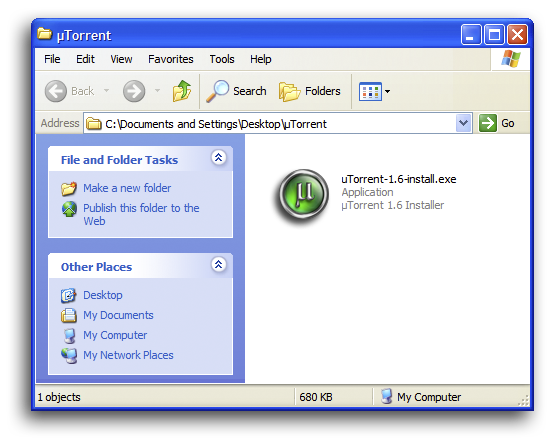
    "Double Click" or "Run" the µTorrent installation executable


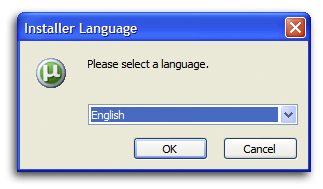
    Choose a language and Click "OK"

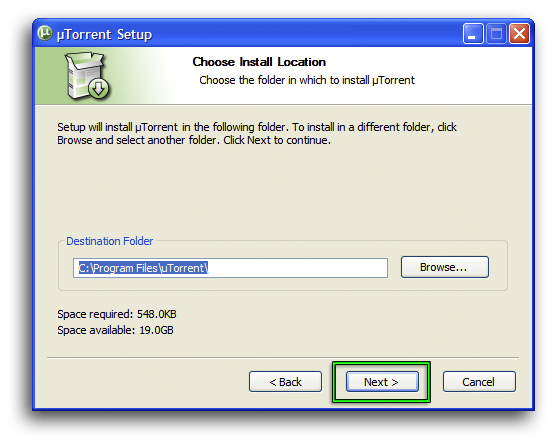
    Click "Next" to continue.

    "Browse..." to a "Destination Folder", or accept the default, then Click "Next".

    Choose a "Start" menu folder, or Choose "Do not create shortcuts", then Click "Install"


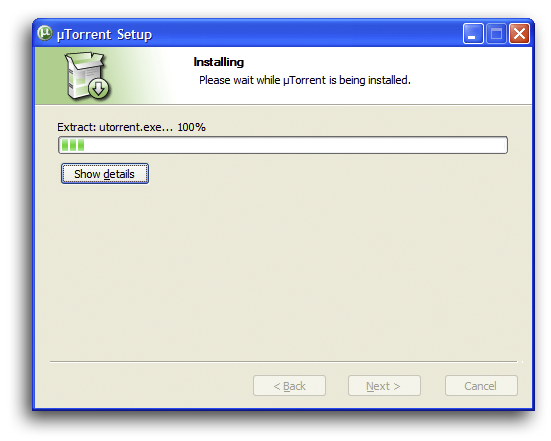
    Wait for µTorrent to be installed.


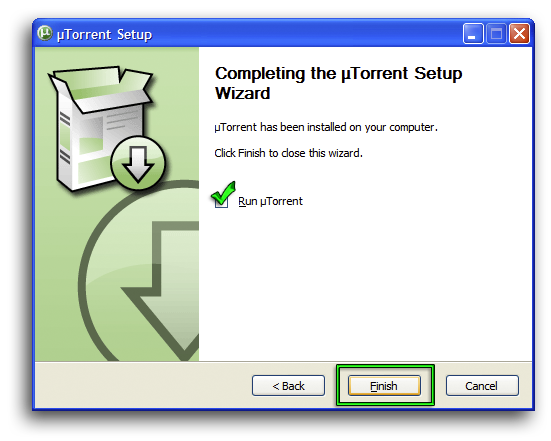
    Click "Finish" to close the Wizard.


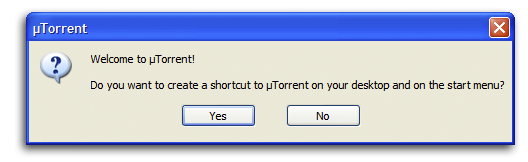
    When given the option to add "Shortcuts"; choose as desired.


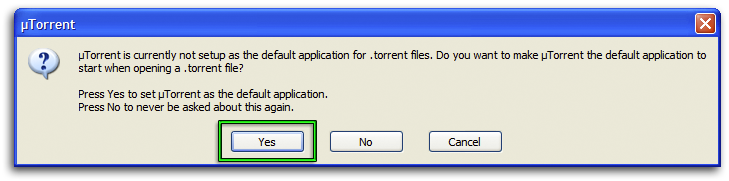
    When prompted to make µTorrent the default application for .torrent files,

    Click "Yes" and torrent files (.torrent) will be automatically opened with µTorrent.


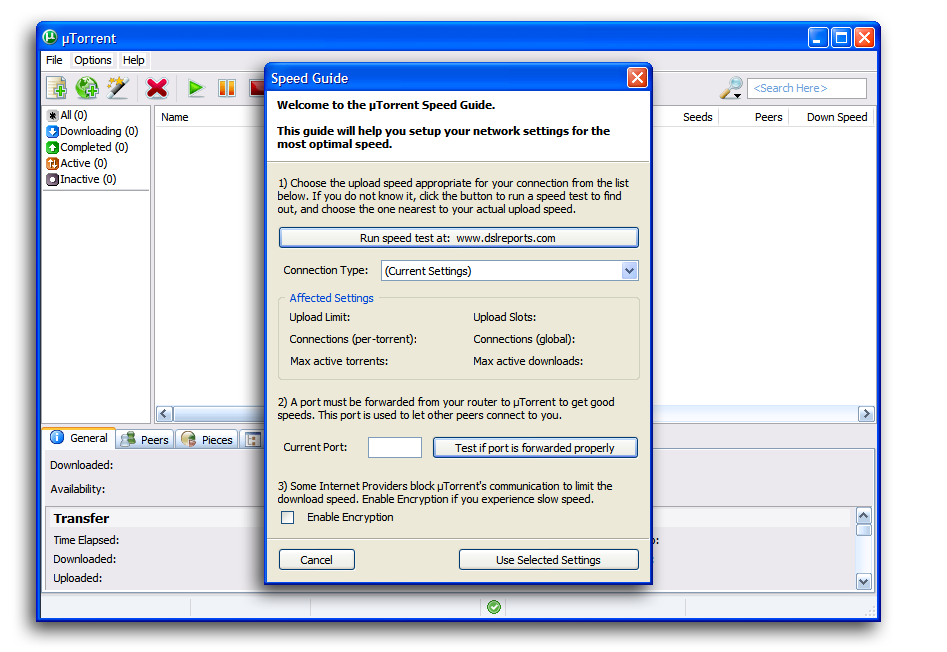
    When µTorrent is "Opened" for the first time, the "Speed Guide" is displayed.

    The Speed Guide will help you set your network for optimal speeds.


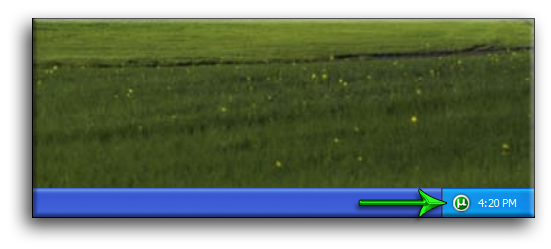
    After the initial "Installation Start", when "Run", the µTorrent icon will appear at bottom right of the screen,

    in the Windows System Tray. Double Click the µTorrent Icon to open the GUI.


    Initial Setup


    After installation, µTorrent will open to the "Speed Guide" Window. The µTorrent “Speed Guide” will help you setup the

    network settings, for optimal speed. The "Speed Guide" can be accessed at any time by navigating to

    µTorrent > Options > Speed Guide (Ctrl + G)


    A) Speed test

    The settings in µTorrent are directly proportional to the Maximum Upload Rate. For the initial setup of µTorrent,

    you can use the "Advertised" (claimed) Max Upload Rate from the Internet Service Provider (ISP),

    but by doing a speed test you can more accurately judge your current line throughput or internet connection speed.

    It is advisable to do a speed test when prompted.

    1)
    Stop all internet traffic before proceeding with the test.

    2) Visit one of the numerous speed testing sites such as DSL Reports, Speakeasy or Speedtest.net.

    3) Perform the test several times. Select a good median result (neither the highest nor the lowest).

    4) The value needed to proceed with the initial settings is the Max Upload Rate, expressed in kilo bits per second (kb/s)

    not kilo Bytes per second (kB/s). [ 1 kB/s = 8 kb/s ]


    B) Connection Type and Speed Setting

    1) Expand the "Connection Type" Drop Down Menu and using the "Advertised" (claimed), or Tested Maximum Upload Rate.

    Select the listing closest to your Upload Rate in kilo bits per second, rounding down as necessary.

    2) Speed tests may not be 100% accurate due to factors outside your control, if the closest speed option

    is only slightly higher than your Maximum Upload Rate (within 10%), it's generally safe to select that option.

    3) You will notice that the "Affected Settings" have adjusted to match the selected speed.

    Higher settings will not yield better speeds, and may in fact make speeds worse.


    C) Port Check and Forwarding

    To get the most from your given network connection it is vital you have an open port and that it is properly forwarded through

    the Router and/or Modem. Software ports are numbered connections that a computer uses to sort network traffic.

    A port may support incoming traffic, outgoing traffic, or both.


    When a computer on the internet sends data to the external IP Address
    of your router, the router needs to know what to do with the data.

    Port Forwarding tells the router, to which computer, on the local area network (LAN) to send the data.

    When you have port forwarding rules set up, the router takes the data
    from the external IP Address / port number and sends that data

    to an internal IP Address / port number. Port Forwarding rules are
    created per port, so a rule set up for port 6881 will only work for
    port 6881,

    and therefore a port can only be used by one program at a time!

    Pick any random port between 49152 and 65535, the "Unassigned" port range and enter that port number

    in the "Current Port" field. Click the "Test if port is forwarded properly" button to check the port you have chosen.

    The Default Browser will open and test the chosen port's mapping.


    If the µTorrent Port Checker displays this message, congratulations your port is open and accepting connections.

    If the µTorrent Port Checker displays this message, the port is not "Open", go to Portforward.com and allow the site to guide you

    through the forwarding process. You will need to know the Router
    and/or Modem manufacturer, Model and the Username and Password;

    check the manual if the passwords suggested by Portforward.com don’t work.

    D) Protocol Encryption

    Some Internet Service Providers (ISPs) are actively interfering with P2P activities to reduce their bandwidth requirements.

    This causes the download speeds of file sharing programs, to become slow. To avoid this, µTorrent and other clients

    have introduced Protocol Encryption to prevent ISPs from identifying BitTorrent traffic.


    Click The "Enable Encryption" box to select.

    Optimizing the Internet Connection


    Tweaking the Network Settings

    “Tweaking” the TCP stack is necessary if you wish to fully utilize the available bandwidth of your connection.

    You can do an “On-Line” tweak test at DSL Reports or use a program like TCP Optimizer.

    TCP Optimizer is a free, easy, "No Install" program that provides an intuitive interface for tuning and optimizing your Internet connection.

    TCP Optimizer - Download

    TCP Optimizer - “On-Line” Documentation


    1 ) Select the Maximum "Advertised" (claimed), or Maximum Tested Download Rate, from the "Connection Speed" slider bar.

    (The maximum available bandwidth, in kilobits per second [kb/s]).

    2 ) Choose your "Network Adapter", or check to "Modify All Network Adapters".

    3 ) Check "Optimal settings"

    4 ) Click "Apply changes", and reboot when prompted by the program.


    The Event ID 4226 Patch

    Windows Vista, Windows XP SP2 and Windows 2003 Server SP1 limit the
    maximum concurrent half-open connections (SYN) to a maximum of 10

    (the previous limit was over 65,000). The drawback to this connection
    limit is that network intensive applications can be slowed, including
    Peer-to-Peer (P2P) clients like µTorrent.

    To change the limit on maximum concurrent half-open connections, effectively editing the TCPIP.SYS file, use the Event ID 4226 Patch.

    A complete guide can be found here: Windows XP SP2 and the Event ID 4226 Patch

    Windows XP SP2 and Windows 2003 Server SP1 Download

    Windows Vista Download

    Once the TCPIP.SYS file, has been patched, open µTorrent and navigate to:

    Options > Preferences (Ctrl+P) > Click "Advanced" > Click “net.max_halfopen” > Enter "50" in the "Value" Field > Click "Set"

    Do not change the “net.max_halfopen” value, without first patching the TCPIP.SYS file, using the Event ID 4226 Patch.

    To truly optimize µTorrent, set the limit to 50 and use µTorrent normally; periodically check the Windows Event Viewer for Event ID 4226 errors;

    if these errors are found, raise the limit by 50, continuing this process, until these errors are no longer logged.

    To access the Windows Event Viewer, navigate to: “Start” > "Run" > Enter "
    eventvwr.msc " > Click "Ok"

    µTorrent “Preferences”

    This section provides descriptions of options available in the µTorrent
    Preferences dialog. Nearly all of µTorrent's internal settings can be
    configured here.

    This section will make recommendations for µTorrent “Preferences”. Many settings deal simply with usability issues,

    while others can greatly affect the program’s ability to transfer files, and the speed at which µTorrent, downloads.

    To make this guide easier to use, where applicable, the recommended settings will have a green checkmark in the illustrations.

    When a calculation or other options are available, they will be explained below the relevant “Preferences” image.

    General

    The General Preferences section deals with user interface options. The recommended settings are denoted above in green.

    User Interface Settings

    Language - There are numerous languages included with the µTorrent installation; additional languages can be easily added,

    by clicking the “More” button, downloading and then installing the
    µTorrent Language Pack. To install the µTorrent Language Pack,

    copy the file into directory with the µTorrent executable and the
    program will install it automatically. The default µTorrent location
    is:

    C:\Program Files\uTorrent

    Check for updates automatically - When enabled, µTorrent will automatically check for updates. Due to recent developments,

    I do not suggest automatically updating µTorrent.

    Confirm when deleting torrents - When enabled, µTorrent will prompt for deletion confirmation.

    Show confirmation dialog on exit - When enabled, µTorrent will prompt for exit.

    System Tray

    Close to tray - When enabled, µTorrent will close to the System Tray if the program is closed using the button,

    on the upper right window frame; otherwise the program will “Close”, or Exit

    Always show tray icon - When enabled, µTorrent will display the µTorrent icon in System Tray

    Show balloon notifications in tray - When enabled, µTorrent will display a “Balloon Notification” upon errors and other designated events

    Minimize to tray - When enabled, µTorrent will “Minimize” to the System Tray if the program is closed using the button,

    on the upper right window frame; otherwise the program will “Minimize” to the Taskbar.

    Single Click on tray icon to open
    - When enabled, µTorrent opens from the system tray with a single click.

    Always activate when clicked - When enabled, µTorrent is activated when tray icon is clicked

    Display Options

    Alternate list background color - When enabled, to help differentiate between torrents,

    the µTorrent application window background will alternate between white and grey.

    Show speed limits in the status bar - When enabled, µTorrent displays the Download & Upload speeds in the status bar,

    on the lower right hand application window frame.

    Show current speed in the title bar - When enabled, µTorrent displays the Download & Upload speeds, in the title bar.

    Show graphical progress bar - When enabled, instead of the percentage numbers alone,

    a blue graphical Progress Bar along with the percentage numbers, will be displayed.

    Windows Integration

    Associate with .torrent files - Clicking this button will associate torrent files (.torrent) with the µTorrent Client.

    Check association on startup - When enabled, µTorrent will ensure torrent files (.torrent) are associated with µTorrent, when started.

    Start µTorrent on system startup - When enabled, µTorrent will start when the system is started, or rebooted.

    Downloads

    Download Preferences provide options for torrent storage, file structure and manipulation.

    Location of Downloaded Files

    Put new downloads in: - Enabling this setting will provide the
    opportunity to change the directory into which, the torrent is
    downloaded. The directory location is selected, using the “Browse Button” indicated above in green. The default µTorrent location is:

    C:\Documents and Settings
    \*User Account*\My Documents\Downloads

    Always show dialog on manual add - When enabled, the “Choose where to save…”
    window is displayed. In this window, the user can “Browse” to a
    storage location other than indicated by “Put new downloads in:” or the
    default location.

    Move completed downloads to: - Enabling this setting will
    provide the opportunity, to move torrent files when completed. The
    directory location is selected, using the “Browse Button” indicated
    above in green.

    Only move from the default download directory - If this setting is enabled, only files saved to the default location will be moved.

    Append the torrent’s label to the directory name - When enabled, the torrents label is applied to the directory name.

    When Adding Torrents

    Don’t start the download automatically - When enabled, an “Added” torrent will NOT automatically start.

    Show a window that displays the files inside the torrent - When
    enabled and a torrent is opened, the “Add New Torrent” window will open
    and display the files contained in the torrent. This gives the user
    numerous options including which files to download.

    Activate the program window - When enabled, µTorrent will activate (Open), when a torrent file (.torrent) is opened.

    Other Settings

    Append .!ut to incomplete files - When enabled, the extension
    “.!ut” will be added to incomplete file names; this will provide a
    visual queue for incomplete files.

    Prevent stand-by if there are active torrents - When enabled and
    there is an active torrent, µTorrent will prevent your PC from entering
    the Standby (Sleep) mode (turns off all nonessential hardware,
    including the monitor, hard drives, and removable drives).

    Pre-allocate all files - When enabled, the space required for the complete torrent download, is reserved on the hard drive.

    "Pre-allocate all files" cannot be used in conjunction with
    "bt.compact_allocation", or "diskio.sparse_files". This option does
    not have an impact on fragmentation of your hard drive, as µTorrent
    already allocates each file upon writing to disk even without this
    option.

    Connection

    Connection Preferences allow the user to properly configure the
    connections port, proxy and bandwidth settings. To optimize a given
    connection it is vital to have an open port and that it is properly
    mapped (forwarded) through the Modem and/or Router

    Listening Port

    Port used for incoming connections: - Specifies the port µTorrent uses to listen for incoming connections; this port must be open to firewalls.

    If you have manually forwarded the µTorrent port, enter that port number in the field provided.

    Random port button - Selects a random port between 10000 and 65000

    Randomize port each time µTorrent starts - When enabled, µTorrent will select a random port between 1024 and 5000 to use at startup.

    This option may conflict with manual port forwarding; If you have manually forwarded the µTorrent port, disable this option.

    Enable UPnP port mapping - When enabled, µTorrent will use the
    "Universal Plug and Play Device Host" Windows Service (UPnP) to
    communicate with the router and automatically forward a port. Some
    devices do not support UPnP, therefore it may still be necessary to
    manually forward the µTorrent port. Disable UPnP if this is the case.

    Enable NAT-PMP port mapping - Network Address Translation - Port
    Mapping Protocol allows a computer in a private network (LAN and Local
    IP Address) to automatically configure a router, or modem, to allow
    parties outside the private network to make contact with µTorrent
    through UDP.

    Add µTorrent to Windows Firewall exceptions - Allows µTorrent to
    add an entry to the Windows Firewall exceptions list that lets it
    bypass the firewall. This is useful only if you actually have Windows
    Firewall enabled. Note that this option works only on Windows XP with
    at least Service Pack 2 (SP2) installed.

    Proxy Server

    While a Viable option, the use of a Proxy Server will inhibit Peer-to-Peer (P2P) file transfers

    Type - Choose the Proxy Server type from the drop down menu. "HTTP" proxies cannot be used for Peer-to-Peer connections.

    Proxy - Enter the proxy's URL or IP address.

    Port - Enter the proxy's port.

    Authentication - When enabled, this setting allows for automatic log in on Secure Proxy Servers.

    Username - Enter the "User Name" as required for authentication.

    Password - Enter the "Password" as required for authentication.

    Use proxy server for peer-to-peer connections - When enabled,
    µTorrent will communicate and transfer data with peers through the
    proxy. By default, this option is disabled, and µTorrent only uses the
    proxy, to communicate with trackers.

    Note: Peer-to-Peer communication cannot be used with HTTP proxies.

    Global Bandwidth Limiting

    The settings in µTorrent are directly proportional to the Maximum
    Upload Rate (MUR). To properly optimize µTorrent, or “Set for Best
    Speeds” it is vital to have an accurate measurement of the MUR.

    To get the most accurate reading on your system, do numerous tests,
    from various testing sites, to diverse testing servers, at different
    times of the day. After getting these speeds, take an average and use
    this average, expressed in kilo bits per second (kb/s), as your MUR.

    Maximum Upload Rate (kb/s) = ( test[sub]1[/sub] + test [sub]2[/sub] + test [sub]3[/sub] +… test [sub]n[/sub] ) / n

    Where "n" is the number of tests in the "Average"

    To do a “Speed Test”,
    Stop all internet traffic before proceeding and use one of the numerous speed testing sites such as DSL Reports, Speakeasy or Speedtest.net.
    Please note, Internet Service Providers (ISP) “Advertise” speeds in
    kilo bits / sec (kb/s) and µTorrent speeds are set and reported in kilo
    Bytes / sec (kB/s). 1 kilo Byte / sec (kB/s) = 8 kilo bits / sec
    (kb/s)

    Global maximum upload rate (kB/s): [0: unlimited] - The maximum
    upload rate for all active torrents combined. If this speed setting is
    too high, the internet connection can quickly become choked. 75% of
    MRU (rounding down) is generally accepted as "Optimal". This setting
    is the upper limit, all adjustments should be made downward.

    Global maximum upload rate (kB/s) = 0.75 ( Maximum Upload Rate (kb/s) / 8 )

    Alternate upload rate when not downloading (kB/s): - When
    enabled, allows the user to define an alternate upload rate, when no
    torrents are in downloading mode (only uploading). Other than the
    context in which it is active, this upload rate limit behaves exactly
    like the "Global Maximum upload rate".

    Global maximum download rate (kB/s): [0: unlimited] - The
    maximum download rate for all active torrents combined. While 0, or
    "Unlimited" is the default and usual setting, it is suggested that 95%
    of the maximum download rate in kB/s will result in a more stable
    network connection.

    BitTorrent

    Number of Connections

    Global maximum number of connections - The maximum number of
    connections µTorrent will make at any given moment for all active
    torrents. The optimal setting is by coincidence the Maximum Upload
    Rate (MUR) expressed in (kb/s)

    Global maximum number of connections = Maximum Upload Rate (kb/s)

    Maximum number of connected peers per torrent - The maximum
    number of peers µTorrent will connect to, at any given moment for each
    separate torrent. The optimal setting is the Maximum Upload Rate (MUR)
    expressed in (kb/s) divided by eight ( 8 )

    Maximum number of connected peers per torrent = Maximum Upload Rate (kb/s) / 8

    Number of upload slots per torrent - The maximum number of peers
    µTorrent will upload to, at any given moment for each separate torrent.
    This setting is always at the very least, one (1) and can be expressed
    as the Global Maximum Upload Rate in (kB/s) divided by four (4).

    Number of upload slots per torrent = Global Maximum Upload Rate (kB/s) / 4

    Use additional upload slots if upload speed < 90% - When enabled, µTorrent will open more upload slots if the current total upload speed is less than 90% of the ”Global maximum upload rate”.

    Additional BitTorrent Features

    Distributed Hash Table (DHT) and Peer Exchange (PEX), are an alternate
    means of getting peers, from other peers instead of through the
    tracker; this is particularly useful on poorly seeded torrents, or when
    the tracker is unavailable.

    DHT and PEX should always be disabled when using a private tracker,
    since they can become problematic. Some problems which may occur are
    the leakage of personal information and connecting to “unregistered”
    clients, which will result in invalid statistics.

    Enable DHT Network - When selected, the Distributed Hash Table (DHT), will be enabled.

    Enable DHT for new torrents - When selected, µTorrent will check
    for peers from the DHT network on each newly added torrent. This
    option only works if the DHT Network is enabled, and if the 'Private'
    flag is not set in the .torrent file.

    Enable Local Peer Discovery - When selected, µTorrent will
    attempt to discover local peers via multicast. If a peer is considered
    local, transfer rates with the peer will not be limited unless Limit
    local peer bandwidth is also enabled. Local peers will not be added to
    the peer list for .torrent files with the 'Private' flag set.

    Ask tracker for scrape information - When enabled, µTorrent will
    “scrape the tracker” (Request new Peer and Seed information). By
    default, the tracker is scraped only when the torrent job is started,
    but this can be changed using the “bt.scrape_stopped:” setting in
    “Advanced Preferences”.

    Enable Peer Exchange - When selected, Peer Exchange (PEX) for
    each newly added torrent will be enabled, provided the 'Private' flag
    is not set for that .torrent file.

    Limit local peer bandwidth - When selected, µTorrent will apply
    the rate limits to peers on the local network. Peers are considered
    local if they are discovered by Local Peer Discovery, or if they are on
    the same LAN as the client.

    IP/Hostname to report to tracker - Enables the user to specify
    the IP address when reporting to the tracker. This is used when the IP
    address is not reported correctly to the tracker; in example when using
    a proxy server. A hostname may be entered in this field; therefore if
    a dynamic DNS service is in use, the domain can be entered here.

    Protocol Encryption

    Outgoing: - There are 3 Protocol Encryption modes available in
    the dropdown menu. All modes will accept incoming encrypted
    connections, and the encryption is 2-way.

    Disabled - µTorrent will attempt to establish only unencrypted outgoing connections.

    Enabled - µTorrent will establish encrypted and
    unencrypted outgoing connections, depending on how the peer responds to
    the handshake.

    This is the recommended option, as it allows µTorrrent to connect to the largest number of peers.

    Forced - µTorrent is “Forced” to establish only encrypted outgoing connections. Any peer that doesn't support encryption

    will not be connected to. It is recommended that this option be “Enabled” unless the ISP actively searches for

    unencrypted incoming connections. This can significantly impair the ability to connect to peers.

    Allow incoming legacy connections - When enabled, µTorrent will
    establish unencrypted incoming connections. If disabled, any incoming
    connection that is unencrypted will be ignored. It is recommended that
    this option be “Enabled” unless the ISP actively searches for
    unencrypted incoming connections. This can significantly impair the
    ability to connect to peers.


    Queueing

    Queueing Preferences, allow the user to set parameters, at which
    torrents will start, stop and the speeds at which the torrent will
    seed.

    Queue Settings

    Maximum number of active torrents - The total maximum number of
    “unforced” active torrents, before placing torrents in the queue.
    Torrents are counted regardless of whether they are uploading, or
    downloading, as long as the speed is at least 1 kB/s.

    This is a personal preference setting, but a certain amount common
    sense and restraint is needed. The total available connection
    bandwidth will be split between active torrents, therefore the maximum
    connection upload and download speed must be taken into account.

    Four (4) is a good, general use number, with which to start. If you have numerous sporadically seeded torrents the number can easily be raised, or “Forced Start” can be used.

    Maximum number of active downloads - The maximum number of
    “unforced” downloading torrents, before placing torrents in the
    download queue. This option only applies to torrents that are
    downloading or are to be placed in downloading mode.

    Using the same reasoning as stated in the “Maximum number of active
    torrents” section, a low number is suggested. A valid strategy is to
    keep this setting low and allow the torrents to “Queue”; as one torrent
    finishes, another will start.

    One (1), or two (2) at most, to start. If for some reason a higher number is desired, “Forced Start” can be used.

    Seed While [Default values]

    Ratio is: <=___% - This setting enables the user to select
    the ratio at which µTorrent will stop, or throttle the speed of seeding
    torrents. Setting the ratio to -1 is equivalent to setting it to
    unlimited. A value of zero (0) will cause µTorrent to ignore the ratio
    parameter and use the “or seeding time is:” setting only. This value
    is interpreted as a percentage, please enter it as such. µTorrent will
    throttle the seeding process only after both this and “or seeding time
    is:” have been reached.

    or seeding time is: - This setting enables the user to select
    the maximum amount of time you wish a torrent to continue seeding, at
    normal speeds after it has finished downloading. µTorrent will
    throttle the seeding process, only after both this and the ratio
    threshold have been reached.

    Seeding tasks have higher priority than downloading tasks - When
    enabled; seeding tasks will have a higher priority than downloads. If
    the maximum number of active torrents is reached, and a torrent reaches
    seeding state, the downloading tasks will not force it into a queued
    seeding state.

    When µTorrent has reached the seeding goal

    Limit the upload rate to [use 0 to stop torrent]: - This setting
    enables the user to select the speed at which µTorrent will throttle a
    torrent when it reaches the seeding goal. A value of zero (0) will stop
    the torrent. This value is expressed in kB/s.

    Force Start takes the selected torrent job(s) out of queue order (makes
    it ignore queueing) and forces it to start immediately, even if the
    maximum number of active torrent jobs and/or downloads has been
    reached. Forced torrent jobs will not stop even if they reach the
    seeding goals.

    Scheduler

    The µTorrent Scheduler allows the user to create schedules controlling bandwidth according to time and day of the week.

    Enable Scheduler - Enables the µTorrent Scheduler when checked.

    Scheduler Table

    • Each square in the table represents, horizontally each hour per day
    and vertically the day of the week. The color can be changed by
    left-clicking these boxes. It cycles through dark green, light green,
    and white. To get light red (Seeding Only), hold Shift while
    left-clicking on the box. Left-click-dragging will cause all time
    blocks that the mouse passes over to change to the new color.

    • If the box is dark green, it is Full Speed, which means that µTorrent
    will adhere to the global upload and download rate limits during that
    hour.

    • If a box is light green, it means the upload and download rates are
    “Limited” and will be bound by the rate limits set, in the "Scheduler
    Settings" section.

    • If a box is light red, it means “Seeding Only”, and all “Unforced” torrents which are downloading, will be stopped.

    Seeding torrents will proceed to seed as usual.

    • If a box is white, it means that all torrent jobs that are not “Forced” will be set to “Stop”.

    Scheduler Settings

    Limited upload rate (kB/s): - The “Global Maximum Upload Rate”
    for all torrents when operating under “Limited mode”. Other than the
    context in which it is active, this upload rate limit behaves exactly
    like the “Global Maximum Upload Rate”.

    Limited download rate (kB/s): - The “Global Maximum Download
    Rate” for all torrents when operating under “Limited mode”. Other than
    the context in which it is active, this download rate limit behaves
    exactly like the global maximum download rate.

    Disable DHT when turning off - When “Checked” DHT (Distributed Hash Table) is disabled, when the scheduler is operating under “Limited mode”.

    Other

    Storage For Torrent Files

    Store .torrent files in - When enabled, this setting will
    provide the opportunity to change the directory in which torrent files
    (.torrent) are saved. The directory location is selected, using the
    “Browse Button” indicated above in green. The Default location where
    µTorrent saves torrents files (.torrent) is:

    C:\Documents and Settings
    \*User Account*\Application Data\µTorrent

    Move .torrents for finished jobs to: - When enabled, this
    setting will provide the opportunity, to move torrent files (.torrent)
    when completed. The directory location is selected, using the “Browse
    Button” indicated above in green.

    Auto-Load Torrents

    Automatically load torrents in directory - When enabled, this
    setting causes µTorrent to check the specified directory for new
    torrent files (.torrent) and to load (Add) these files automatically.
    The directory location is selected, using the “Browse Button”
    indicated above in green.

    The directory specified, must be different, from the directories specified in “Store .torrent files in” and “Move .torrents for finished jobs to:”.

    Delete torrent instead of renaming, when loading - When enabled,
    µTorrent will delete the torrent file (.torrent) from the directory
    specified in “Automatically load torrents in directory” once the file
    is automatically loaded. Normally, if this option is not checked,
    µTorrent appends .loaded to the extension to indicate the torrent file
    (.torrent) has been loaded and to prevent µTorrent from load loading
    the .torrent file again.

    Other

    Boss-Key - This setting allows the user to enter a keyboard
    combination that will remove µTorrent immediately from the desktop.
    The main window, any open dialog windows, the Taskbar Button and the
    system tray icon will be hidden and appear again when the keyboard
    combination is used a second time. To set this field, press any
    combination of modifiers (Ctrl, Alt, and Shift) and keys (letters,
    numbers, function keys…). Make sure the key combination selected is not
    in use by another application.

    Allow µTorrent to send anonymous version number and random id when checking for new version
    - When enabled, this setting allows µTorrent to send an anonymous,
    non-private, randomly generated ID and the µTorrent version and build
    numbers, to the “Update Server” in order to count the number using
    µTorrent.

    Clear Private Data - Clicking this button will clear previously used paths, like the “Add New Torrent” and “Create New Torrent” dialogs.


    Advanced

    Advanced Preference settings are not intended for the casual user.
    Unless the consequences are fully understood, Advanced settings,
    should not be modified. Advanced Preferences settings, have two types
    of editable "Values", Numerical and Logical (True & False). To
    change values, use the "Set" button. To return a value to the default
    setting, use the "Reset" button.

    gui.compat_diropen - Enables a different directory open window for those having problems seeing directories with the default directory browser.

    net.bind_ip - Makes µTorrent use a specific LAN adapter for incoming connections only. Specify the IP address of the adapter.

    net.outgoing_ip - Makes µTorrent use a specific LAN adapter for all outgoing connections only. Specify the IP address of the adapter.

    net.outgoing_port - Makes µTorrent use a single outgoing port.
    This should only be used in specific cases. This can be used with full
    cone NAT routers, to reduce the number of NAT table entries and thus,
    prevent crashes.

    net.low_cpu - Reduces CPU use slightly. Unless the system is significantly slow, leave this setting off.

    net.max_halfopen – The number of half-open (incomplete)
    connection attempts µTorrent will make at any one time. Windows Vista,
    Windows XP SP2 and Windows 2003 Server SP1 limit the maximum concurrent
    half-open connections (SYN) to a maximum of 10 (the previous limit was
    over 65,000). The drawback to this connection limit is, network
    intensive applications can be slowed, this includes Peer-to-Peer (P2P)
    clients like µTorrent.

    Do not change this setting without first changing (patching) the TCPIP.SYS file, using the Event ID 4226 Patch.

    To change the limit on maximum concurrent half-open connections, effectively editing the TCPIP.SYS file, use the Event ID 4226 Patch.

    A complete guide can be found here: Windows XP SP2 and the Event ID 4226 Patch

    Windows XP SP2 and Windows 2003 Server SP1 Download

    Windows Vista Download

    To change the “net.max_halfopen" setting, enter the desired "Value" in the field provided and click "Set".

    To truly optimize µTorrent, set the limit to 50 and use µTorrent normally; periodically check the Windows Event Viewer for

    Event ID 4226 errors; if these errors are found, raise the
    limit by 50, continuing this process, until these errors are no longer
    logged.

    To access the Windows Event Viewer, navigate to: “Start” > "Run" > Enter "
    eventvwr.msc " > Click "Ok"

    net.wsaevents - Intended to address unusual firewall problems. Lower the value one by one to see if it makes any difference.

    ipfilter.enable - Enables or disables the use of ipfilter.dat

    You can ban certain IP ranges in µTorrent with "ipfilter.dat"

    "ipfilter.dat" is a simple text file that specifies IP ranges to block.

    The format is xxx.xxx.xxx.xxx - yyy.yyy.yyy.yyy

    You can also use single IPs on a line (i.e. xxx.xxx.xxx.xxx).

    Each new IP or IP range must be placed on a new line.

    Download the latest blocklist from Bluetack at
    http://www.bluetack.co.uk/config/nipfilter.dat.gz. This list is updated daily,

    and contains all known Anti-P2P organizations, trackers and
    peers, as well as all known Goverment & Military IP addresses.

    Once downloaded, extract and rename the file to "
    ipfilter.dat".

    To make the list available to µTorrent, put it in the
    %AppData%uTorrent folder, found at:

    C:\Documents and Settings\*User Name*\ApplicationData\uTorrent or Start > Run >
    %APPDATA%\uTorrent.

    After placing the ipfilter.dat in this folder, set "ipfilter.enable" to "True", and click "Apply"

    You can verify that the list has been loaded by looking under the "Logger" tab in µTorrent,

    where you should see the line "
    Loaded ipfilter.dat (X entries)".

    To reload ipfilter.dat without restarting µTorrent (1.7+
    only), view the Peers tab, right click, and select "Reload IPFilter."

    dht.rate - Control setting for DHT bandwidth. With automatic
    management (-1), µTorrent will limit DHT bandwidth based on the Max
    Upload Rate; this limit ranges from 512 to 8192. dht.rate uses your Max Upload Rate divided by 16 to determine this value, to improve DHT performance.

    rss.update_interval - Sets the update interval for RSS. Values lower than 5 will be ignored, and remain at 5.

    gui.update_rate - Sets the refresh interval for the GUI in ms; the minimum is 500ms.

    gui.delete_to_trash - Sends deleted files to the recycle bin.
    This can also be enabled by right clicking on the remove toolbar icon
    and checking "Move to trash if possible."

    gui.default_del_action - Sets the default remove action. This
    option should not be modified directly, and instead should be modified
    by right clicking the "Remove" toolbar icon while holding "Shift" and
    choosing the "Remove" option you want to be default.

    gui.bypass_search_redirect - Sets µTorrent to search directly on the selected search engine rather than being redirected through http://search.utorrent.com.

    queue.dont_count_slow_dl/ul - Forces µTorrent to not count torrents going less than 1KB/s up, or down towards the active torrents.

    queue.prio_no_seeds - Prioritizes torrents that have no seeds when seeding.

    bt.scrape_stopped - Enables or disables scraping the tracker for torrents that have been stopped (not queued).

    bt.compact_allocation - Allows µTorrent to create files similar to the Python scripting method, to save space. Do not use this option with diskio.use_partfile. This option may not work properly. The associated error is "Element not found".

    bt.enable_tracker - Enables or disables the embedded tracker. The tracker URL is http://your.ip:port/announce

    bt.multiscrape - This turns on/off multi-scrape, which is
    sending multiple hashes per scrape. You should not have to change this
    option, since µTorrent automatically detects when a tracker doesn't
    support it.

    bt.send_have_to_seed - Enabling this option sends a message to other seeds indicating how many pieces you currently have.

    bt.set_sockbuf - A debugging option to auto detect the TCP buffer size (so_sndbuf) and adjust it based on the upload speed.

    bt.connect_speed - Controls the number of connections per second µTorrent makes.

    bt.prio_first_last_piece - Enabling this option prioritizes the first and last pieces of each file in a torrent.

    bt.allow_same_ip - Allows multiple connections from the same IP. Generally this should not be used, since it weakens the anti-leech protection.

    bt.no_connect_to_services - Disallows connecting to peers using
    a remote port of 25 or 110. This should only be used if you really,
    really want to keep your e-mail detection on in your anti-virus.

    peer.lazy_bitfield - When enabled, µTorrent does not send the complete bitfield, but a sample of it, so as to prevent blocking of seeding.

    peer.resolve_country - Makes µTorrent use a DNSBL service to determine a peer's country.

    peer.disconnect_inactive - This enables or disables
    disconnecting from inactive peers after a set period of time (default
    being 5 minutes). However, it will NOT disconnect if the number of
    peers in the swarm is lower than the value set for maximum number of
    connections per torrent.

    peer.disconnect_inactive_interval - Sets the time interval
    waited, before breaking an inactive connection. This value is
    interpreted in seconds and the default is 5 min. It is suggested that
    a higher value may result in greater connection stability.

    peer.disconnect_inactive_interval = 600

    diskio.flush_files - Enabling this option closes file handles
    every minute. This helps reduce the effect of Windows managing the
    system cache badly for some people and causing so-called "memory leaks".

    diskio.sparse_files - Enabling this option allocates only the
    data that has been written. This option is only availabale to hard
    drives partitioned as NTFS (2k/XP/2003). This option will increase
    fragmentation, but save space while downloading.

    diskio.use_partfile - This is used to store data that is
    downloaded from files that marked as "Do not download." This is
    necessary to prevent the file from being allocated and stores the parts
    of the files that come with a piece, since µTorrent must download and
    save the entire piece, which can include data for files you didn't want
    to download. Avoid using this in conjunction with compact allocation.

    diskio.smart_hash - This makes µTorrent hash data from memory
    (if in the write queue), instead of flushing to disk, re-reading from
    disk, and then hashing. This should help reduce reads, especially at
    high speeds.

    diskio.coalesce_writes - Tries to minimize the number of writes
    to disk, by writing more data at once. It doesn't have any effect at on
    download speed, but might increase memory and CPU usage to achieve less
    disk writes.


    Disk Cache

    The disk cache is used to keep frequently accessed data in memory, to
    reduce the number of “Reads & Writes” to the hard drive.

    µTorrent normally manages the cache automatically, but you may change its behavior by modifying these settings.

    Disk Cache

    Override automatic cache size and specify the size manually: -
    Enables the user to set a new maximum memory usage for the disk cache.
    Normally, µTorrent automatically adjusts the cache size based on
    current download speed.

    Reduce memory usage when cache is not needed - Clears the disk cache when µTorrent is not transferring data.

    This option should not be used if you wish to minimize disk access.

    Advanced Cache Settings

    Enable caching of disk writes - When enabled, µTorrent will decrease the frequency of disk writes, by storing data in memory before writing to disk.

    This has the effect of decreasing the frequency of reads from disk.

    Write out untouched blocks every 2 minutes - When enabled, µTorrent will write to disk, 16 KB blocks of data in memory,

    that haven't been touched for 2 minutes.
    This option should not be used if you wish to minimize disk access.

    Write out finished pieces immediately - When enabled, µTorrent will write a piece to disk once it is completed in memory.

    This option should not be used if you wish to minimize disk access.

    Enable caching of disk reads - When enabled, µTorrent will use the disk cache to store frequently read data into memory, from disk.

    This has the effect of decreasing the frequency of reads from disk.

    Turn off read caching if the upload speed is slow - When enabled, µTorrent will disable read caching, if upload speed is below 40 KB/s.

    This lowers memory usage when the cache is not needed.
    This option should not be used if you wish to minimize disk access.

    Remove old blocks from the cache - When enabled, µTorrent will remove chunks of read cache data, from memory if they have not been

    accessed for 10 minutes.
    This option should not be used if you wish to minimize disk access.

    Increase automatic cache size when cache thrashing - When enabled, µTorrent will increase the cache size, when the “Reads” from disk

    increase (most often due to increased upload speeds). If you override the automatic cache size, this option is not needed.


    User Interface

    Actions for Double Click

    For seeding torrents: - This setting enables the user to select the action that µTorrent takes, when double-clicking a seeding torrent,

    in the Main µTorrent program window.

    For downloading torrents: - This setting enables the user to select the action that µTorrent takes, when double-clicking a downloading torrent,

    in the Main µTorrent program window.

    The following options can be set from the "Drop Down" menu.

    Show Properties - The “Torrent Properties” window will open.

    Start / Stop - Changes the condition of the double-clicked torrent (either Start or Stop).

    Open Folder - Opens the “Containing Folder” of the double-clicked torrent.

    Show Download Bar - Displays a torrent information bar “Always on top”, on the Desktop.


    Speed Popup List

    Override automatic speed popup list - When enabled, the user can define the lists, of speeds displayed, when “Right-Clicking”

    the corresponding item on the status bar, in the Main µTorrent program
    window. If left unchecked, µTorrent will automatically generate a
    list,

    based on the current limit.

    Upload speed list - The user defined “Upload Speed” list. Each value (in kB/s) must be separated with a comma;

    no spaces should be used. “-1” adds a separator to the list. Zero “0” adds “Unlimited”.

    Any other positive value is interpreted normally (as that value).

    Download speed list - The user defined “Download Speed” list. Each value (in kB/s) must be separated with a comma;

    no spaces should be used. “-1” adds a separator to the list. Zero “0” adds “Unlimited”.

    Any other positive value is interpreted normally (as that value).

    Persistent Labels

    Enables the user to specify a permanent label regardless of the number of torrents, which are actually using that label.

    Multiple persistent labels may be entered, but must be separated with a
    “ | ” (vertical pipe). Persistent labels are given higher priority

    than normal labels in the category list, so correspondingly, they are displayed above their normal counterparts.

    Search Engines

    Clicking the µTorrent “Search Button” displays a drop down menu allowing the user to select a search engine, from this list.

    To search, type the query into the “Search Field”, click the Search
    Button to choose the desired site and press “Enter” on the keyboard.

    The µTorrent built-in Search facility will open a window or tab, in the default browser, and display the desired search.

  • The search engine text area, allows the user to edit the list of search engines used for the built-in torrent search.

  • Blank lines are displayed as separators in the search engine menu.

  • The search button and search field will be hidden if the search engine list is empty.

  • Search engines may be added, but must be entered in the following format.

    Search Engine Format:
    Name|http://domain/path?search=


    Web UI
  • µTorrent can be use remotely from any computer, via the µTorrent Web UI
    (User Interface) and a web browser, through the port designated for
    BitTorrent transfers. Not every feature is available to the Web UI,
    but most are accessible including, “Add” by either uploading a .torrent
    file, or by entering the torrent URL, “Start”, “Stop”, “Remove” and
    changing bandwidth settings.

    To use the µTorrent Web UI the file “webui.zip” must be placed “
    as is” (still zipped) in the same folder as µTorrent's “settings.dat” file, by default at:

    C:\Documents and Settings\
    *User Account*\Application Data\µTorren
    The file “webui.zip” can be downloaded here; included in the “webui_v0.310_beta_2.rar” download, are webui.zip, µTorrent.exe and additional instructions.

    Once enabled and properly setup, the µTorrent Web UI can be accessed using the system’s IP address and µTorrent listening port.

    From a remote location simply open the web browser and enter in the address bar "
    http://Home System IP: Port/gui/

    i.e. http://123.456.78.90:52000/gui/ If you use a dynamic DNS Service, your domain may be used instead of the IP address.

    Enable Web Interface - When enabled the µTorrnet Web UI will be available for remote use.

    Authentication

    Username - Enables the use of a specific “Username” with which
    to log in from a remote location, adding an additional layer of
    security.

    The default is “Admin”.

    Password - Used to define a "Password" for the specificied “Username”. This field may be left blank if a password is not desired.

    Enable Guest account with username: - When enabled the “Guest
    Account” is activated. When enabled, a “Username” for the “Guest
    Account” must be specified. A “Guest” may view (but not edit) the
    torrents currently in µTorrent.

    Connectivity

    Alternative listening port (default is the bittorrent port): - When enabled, the user can set a port specific to Web UI requests; this option is especially valuable when using “Randomize port each time µTorrent starts”. The "Alternative" listening port must be forwarded manually, even if “UPnP” is used to forward the normal µTorrent port. If left disabled, µTorrent will serve the Web UI over the normal listening port.

    Restrict access to the following IPs (Separate multiple entries with ,):
    - Allows the user to limit the IPs which can connect to the web
    interface. Multiple IPs may be specified, but must be separated by
    commas. IP ranges may be set using “Classless Inter-Domain Routing” (CIDR) notation; i.e. "
    xxx.xxx.xxx.xxx/n" where [xxx.xxx.xxx.xxx] is the IP Address and [n] is the number of (left most) '1' bits in the mask.
  • torrentfreak feed

    Releaselog Movies

    Releaselog TV Shows

    Releaselog Games

    Releaselog Applications